Photoshop-style layers. Inside your RAW darkroom.Photoshop 式圖層,就在你的 RAW 暗房裡。
Open any photo in Layers and keep going the way you would on the desktop — selections, masks, adjustment layers, blend modes, text and AI retouching. The develop you already did is layer one, and it stays live. 把任何相片打開到「圖層」,就像在桌面軟體一樣繼續做 — 選取、遮罩、調整圖層、混合模式、文字與 AI 修圖。你已經做好的顯影就是第一層,而且一直保持可調。
Select the subject. Mask the rest.選取主體,遮住其餘。
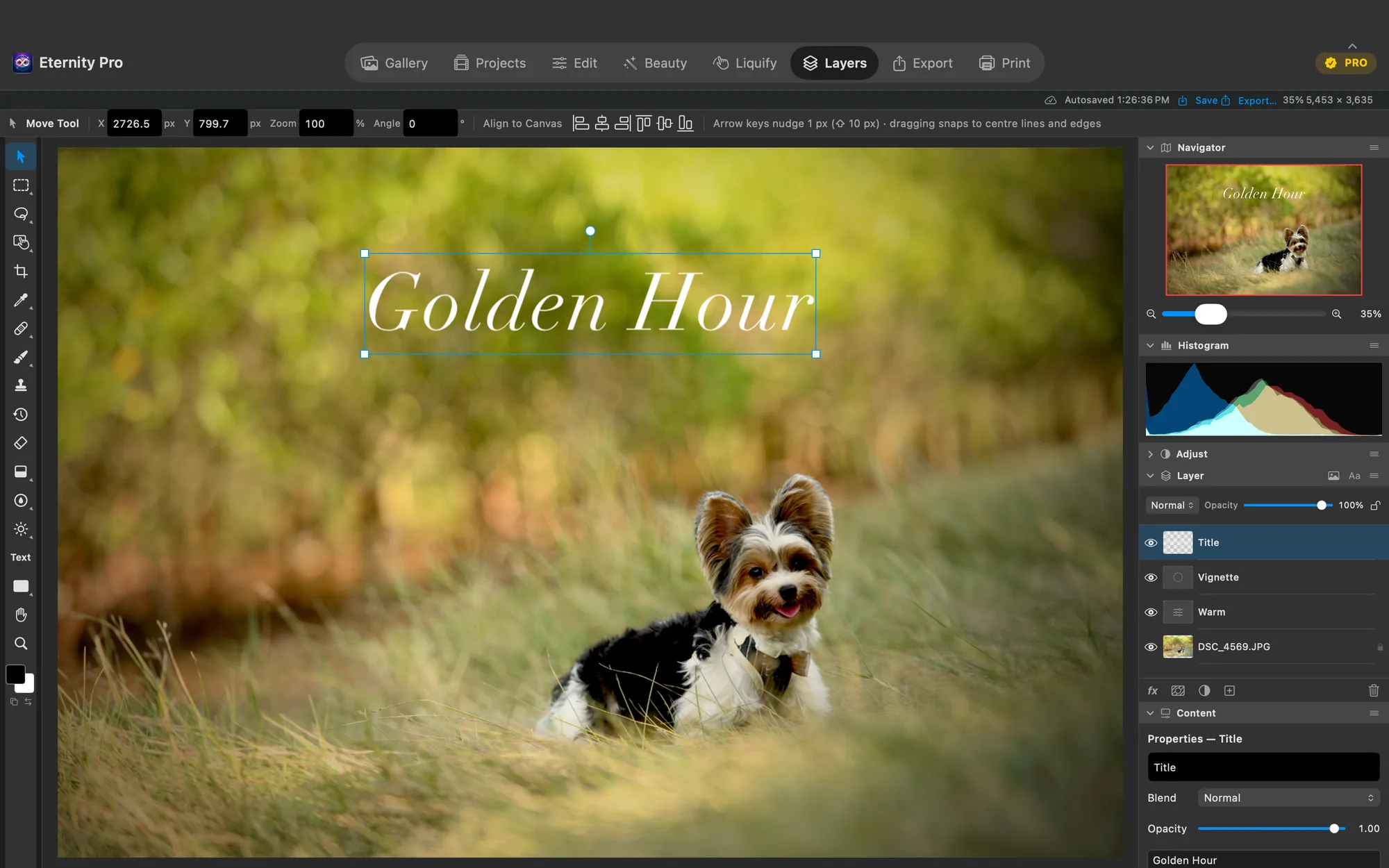
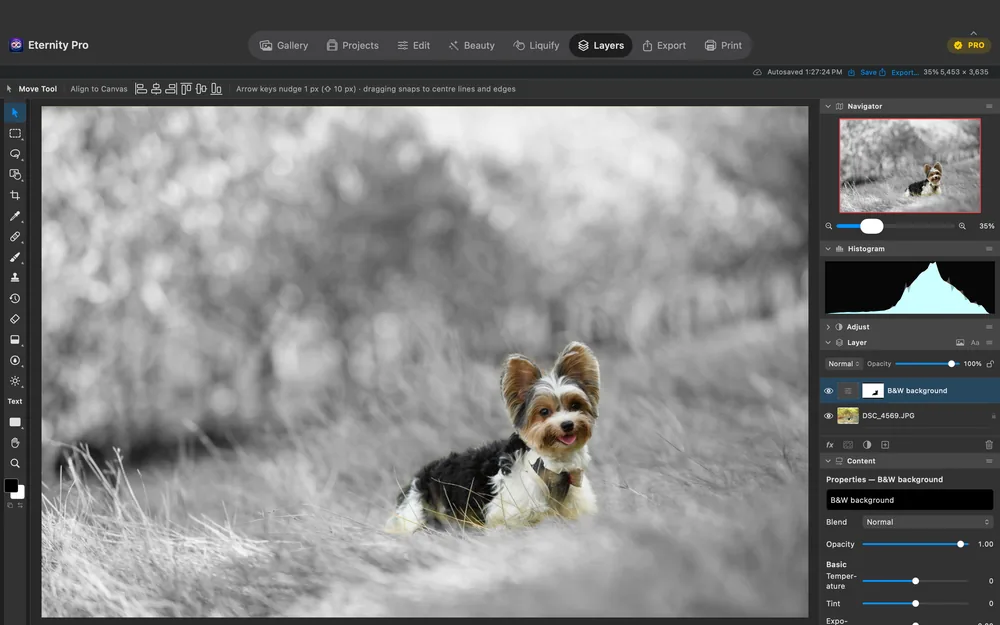
One click finds the dog; one masked adjustment layer turns everything else black and white. Selections understand objects, not just colours.一下點擊就找到這隻狗;一個加了遮罩的調整圖層,把其餘部分變成黑白。選取工具看得懂物件,而不只是顏色。
- Select Subject, Object Selection and Select Sky — on-device AI選取主體、物件選取與選取天空 — 裝置端 AI
- Quick Selection that grows to the whole object, not into the background快速選取會長到整個物件,而不是溢到背景
- Magic Wand with sample size, tolerance, contiguous and anti-alias魔術棒:取樣大小、容許度、連續與消除鋸齒
- Select and Mask — edge radius, smooth, contrast, shift edge, feather選取並遮住 — 邊緣半徑、平滑、對比、移動邊緣、羽化
- Add, subtract and intersect with ⇧ and ⌥; save and load selections用 ⇧ 與 ⌥ 增加、減去、交集;儲存與載入選取範圍
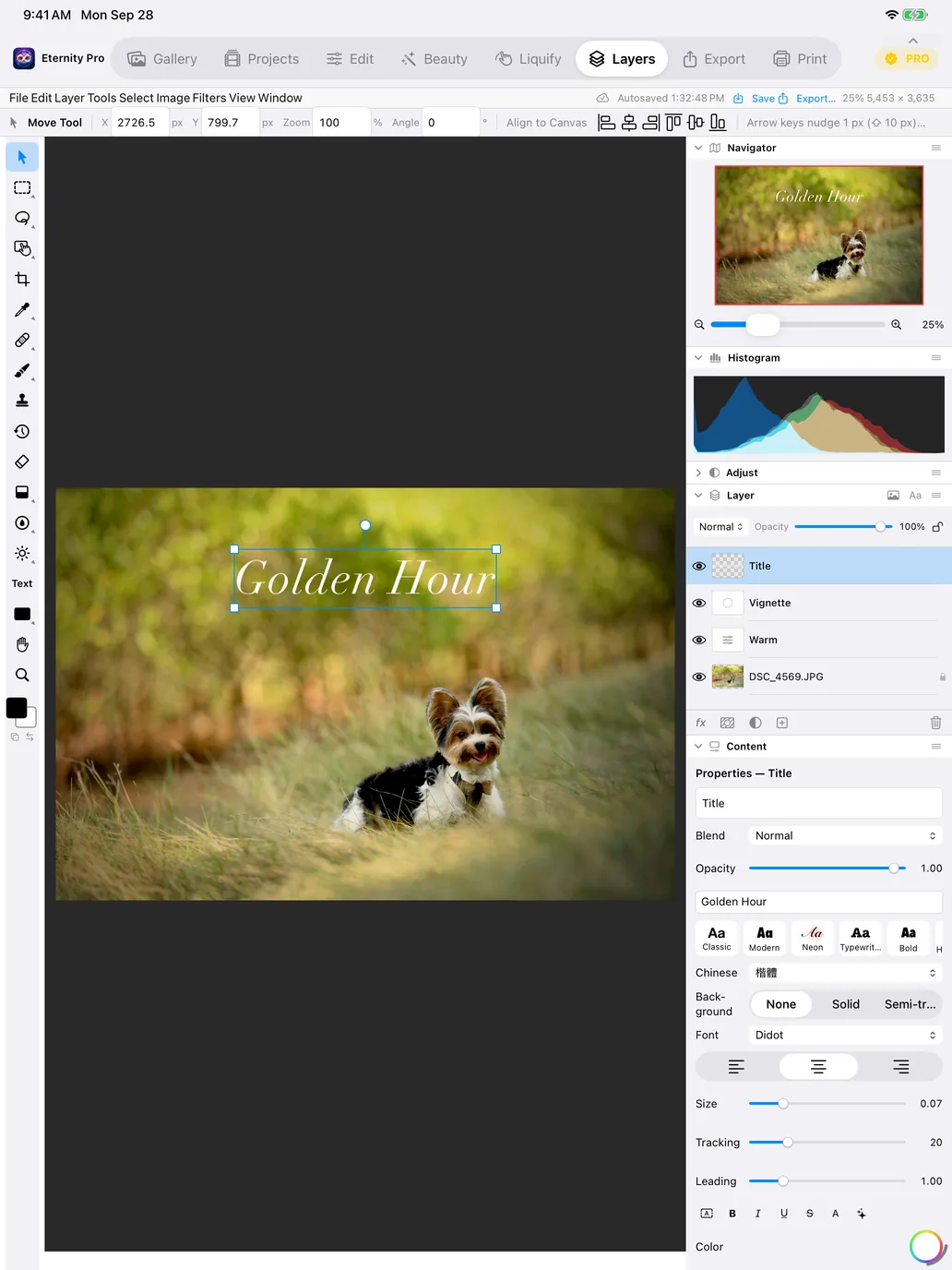
The same workspace on iPad.iPad 上是同一個工作區。
Every tool, panel and menu works with touch or a keyboard. On Mac the menus live in the real menu bar, with the shortcuts your hands already know.每個工具、面板與選單都能用觸控或鍵盤操作。在 Mac 上,選單就在真正的選單列,快捷鍵也是你早已熟悉的那一套。
- Single-letter tools — V, M, L, W, B, S, J, T — and ⌘J, ⇧⌘S, ⌘0, ⌘1單鍵切換工具 — V、M、L、W、B、S、J、T — 以及 ⌘J、⇧⌘S、⌘0、⌘1
- Right-click menus on the canvas, just like the desktop畫布上的右鍵選單,跟桌面軟體一樣
- Dockable panels: Layers, Properties, Adjustments, Histogram, Info, Navigator, History, Channels, Paths, Layer Comps, Actions, Swatches可停靠面板:圖層、內容、調整、色階分佈、資訊、導覽器、記錄、色版、路徑、圖層構圖、動作、色板
- Move a document between devices as an .eternity file — original and edits included以 .eternity 檔在裝置之間搬移文件 — 原圖與編輯全部帶著走
A complete toolbox, not a sketch of one.完整的工具箱,不是示意版。
🗂️Layers & masks圖層與遮罩
Stack, group and blend — the stack behaves the way you expect.堆疊、群組、混合 — 圖層的行為跟你預期的一樣。
- 16 blend modes
- Layer masks
- Clipping masks
- Groups
- Opacity & lock
- Merge · Stamp · Flatten
- Multi-select
- Align & distribute
🎛️Adjustment layers調整圖層
Non-destructive, maskable, re-editable any time.非破壞、可加遮罩、隨時重新編輯。
- Levels
- Curves
- Exposure
- Vibrance
- Hue/Saturation
- Color Balance
- Black & White
- Photo Filter
- Selective Color
- Channel Mixer
- Gradient Map
- Color Lookup (LUT)
- Match Color
- Posterize · Threshold · Invert
- Auto Tone · Contrast · Color
🪄AI retouchingAI 修圖
Remove what shouldn't be there — on-device, nothing uploaded.移除不該出現的東西 — 在裝置上完成,不會上傳。
- Content-Aware Fill
- Content-Aware Move
- Spot Healing
- Healing Brush
- Patch
- Clone Stamp
- Red Eye
- History Brush
🖌️Paint & shape繪畫與形狀
Every stroke lands on its own layer, so nothing is baked in.每一筆都在自己的圖層上,什麼都不會被寫死。
- Brush
- Eraser
- Dodge · Burn · Sponge
- Blur · Sharpen
- Gradients (multi-stop)
- Paint Bucket
- Shapes
- Patterns
- Fill & Stroke
- Eyedropper & swatches
✨Filters濾鏡
Applied as layers you can mask, fade and change later.以圖層方式套用,可加遮罩、淡化,之後還能改。
- Gaussian Blur
- Motion Blur
- Surface Blur
- Unsharp Mask
- Add Noise
- Reduce Noise
- Liquify
- Lens Flare
- Clouds
- Vignette
- Mosaic · Emboss
🔤Type & styles文字與樣式
Click and type on the photo; style it without rasterising.在照片上點一下就打字;加樣式也不會被點陣化。
- On-canvas editing
- Latin & Chinese fonts
- Tracking · Leading
- Drop Shadow
- Stroke
- Glow
- More layer styles
📐Transform & canvas變形與畫布
Place, bend and straighten, then size the canvas to fit.擺放、彎曲、拉直,再調整畫布大小。
- Free Transform
- Warp
- Flip
- Straighten (ruler)
- Crop with ratios
- Image Size
- Canvas Size
- Rotate canvas
- Grid
🎞️Your RAW stays liveRAW 保持可調
Layer one is your photo as developed in the darkroom — change the develop, and the composite follows. Nothing is flattened until you export.第一層就是你在暗房裡顯影好的相片 — 改顯影,合成就跟著變。匯出前什麼都不會被合併。
- Camera Raw panel on layer one
- Full undo history
- Autosave with backup
📄Files in, files out檔案進、檔案出
A real layered PSD — layers, masks, blend modes, groups and layer names intact.真正的分層 PSD — 圖層、遮罩、混合模式、群組與圖層名稱完整保留。
- Layered PSD
- Transparent PNG
- JPEG · TIFF · HEIC
- .eternity projects
- Open from Files & Finder
- Drag photos in as layers
Layers is available on iPad and Mac. Eternity Studio Pro is not affiliated with Adobe.圖層功能適用於 iPad 與 Mac。Eternity Studio Pro 與 Adobe 無任何關聯。
Develop it. Then build on it.先顯影,再疊上去。
Free to download and explore. Try Layers and every Pro tool free for 7 days.免費下載、先試用。圖層與所有 Pro 工具可免費試用 7 天。